Book View
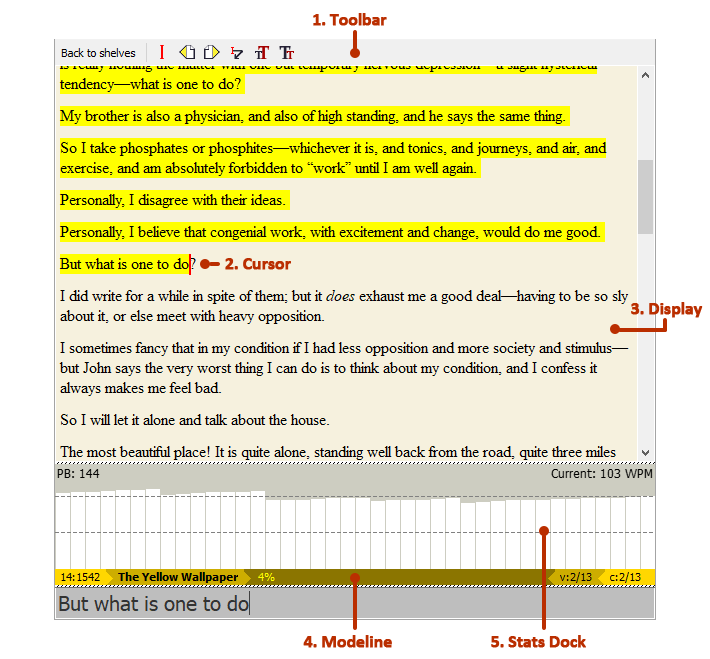
- Toolbar
The bar at the top of the view, which contains common Book-View-specific actions.
- Cursor
Represents the current position in the text.
- Display
The main book display which contains the text to be typed, with the text already typed highlighted in yellow.
- Modeline
The bar at the bottom of the view, which contains some information about the book and the current position therein.
- Stats Dock
A collapsible and resizeable dock which displays statistics on the user’s typing rate in WPM (words per minute).
Toolbar actions
- Back to shelves
Return to Shelf View.
- Cursor position
Go to the cursor position. Hold Ctrl to instead move cursor to your current position.
- Previous chapter
Go to the previous chapter. Hold Ctrl to move cursor with you as well.
- Next chapter
Go to the next chapter. Hold Ctrl to move cursor with you as well.
- Skip line
Move cursor to the next line.
- Increase font size
Increase the Display’s font size.
- Decrease font size
Decrease the Display’s font size.
Most of these actions have corresponding Console commands.
The font size can also be increased or decreased using the mousewheel while holding Ctrl.
Modeline

- Line position
The line position of the cursor in the current chapter.
- Cursor position
The raw cursor position in the current chapter.
- Book title
The title of the book currently loaded.
- Percentage completed
How far through the book the cursor is located.
- Chapter position (view)
The chapter position of the chapter currently viewed.
- Chapter position (cursor)
The chapter position of the cursor.
Stats Dock
The Stats Dock is the graph above the Modeline. It can be resized or collapsed using the drag handle above it. It contains the following main elements:
- PB
The personal best WPM (words per minute) typing speed achieved in the current session.
- Current
The current typing speed in WPM.
- Rectangles
Each rectangle’s height represents the WPM achieved as a proportion of the PB. New rectangles appear on the right; the right-most rectangle represents the current WPM.
- Dashed lines
Dashed lines appear every 50 WPM and are there to help gauge the WPM each rectangle represents. For example, a rectangle whose height matches the first dashed line from the bottom represents 50 WPM.
The Stats Dock updates on every letter typed correctly.